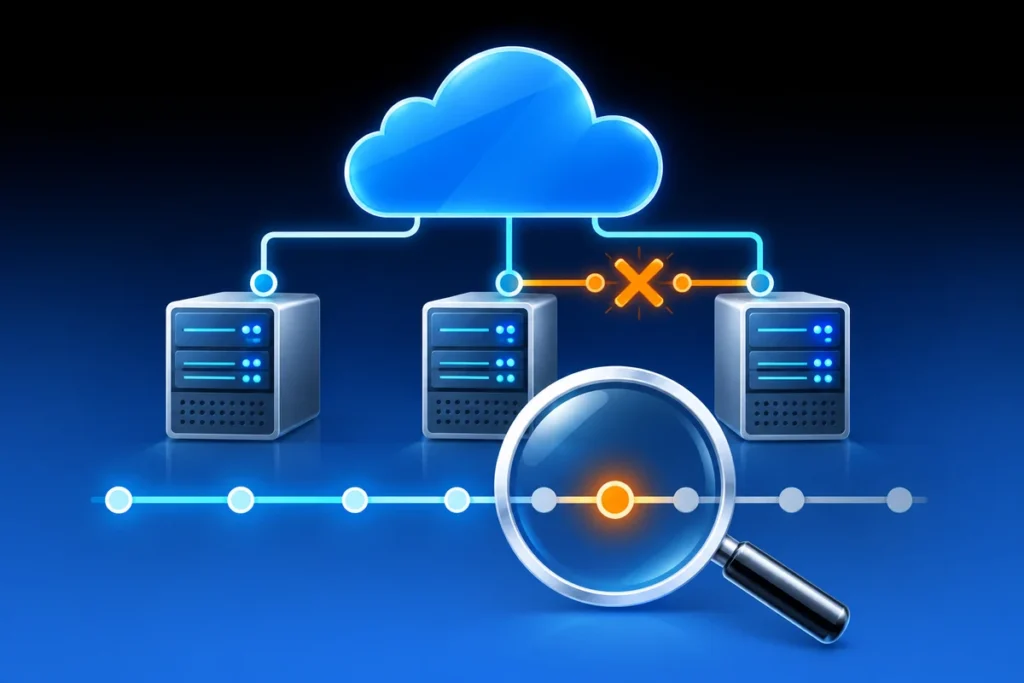
Azure Local Network Troubleshooting: Find When Connectivity Failed
Technical review: 26 October 2026. Product names, licensing references and procedures reflect this review; check the linked documentation for your release.
When several Azure Local hosts lose connectivity together, immediately resetting adapters can destroy useful evidence and disrupt additional traffic. Begin by establishing the affected path, the approximate start time and what still works. The objective is to produce a small, defensible timeline rather than a large collection of unrelated log entries.
Define the failure before querying logs
Record source, destination, protocol and direction for one failed connection. Distinguish host management, VM traffic, storage networks and cluster communication. One successful DNS query or ping does not establish that every VLAN, route or storage path is healthy. A failing ping can also reflect filtering rather than a physical link failure.
Use an approved console or out-of-band management path if normal administration is unavailable. Note whether each timestamp is local time or UTC, and preserve the original timezone when exporting evidence. Correlating a switch event with a Windows event requires that both clocks are understood.
Collect the current state without changing it
Get-NetAdapter -IncludeHidden |
    Select-Object Name, InterfaceDescription, Status, LinkSpeed, ifIndex
Get-NetIPAddress -AddressFamily IPv4 |
    Select-Object InterfaceAlias, IPAddress, PrefixLength
Get-NetRoute -AddressFamily IPv4 |
    Sort-Object InterfaceIndex, DestinationPrefix
Identify physical adapters, virtual management adapters and their relationship to the deployed network design. Display names are not stable proof of a physical port. Record interface descriptions and indexes, and map them to switch ports through the approved inventory. Do not change teaming, RDMA, virtual switches or VLAN settings based only on a generic example.
Build a short event window
Choose a window beginning before the first reported symptom. The following read-only query uses example timestamps; replace them with the incident window in the host’s local time:
$start = [datetime]'2026-10-20 13:30'
$end = [datetime]'2026-10-20 15:30'
Get-WinEvent -FilterHashtable @{
    LogName = 'System'
    StartTime = $start
    EndTime = $end
} | Select-Object TimeCreated, ProviderName, Id, LevelDisplayName, Message
Start with the System log, then examine the adapter/vendor, Hyper-V and failover-clustering channels relevant to the affected path and installed release. There is no single event ID that proves every kind of network outage. Save the original EVTX evidence before logs roll over, and keep exports access-controlled.
Correlate; do not assume the cause
Compare the first link or transport symptom across affected hosts with switch logs, firewall changes and monitoring history. Similar timing across several nodes strengthens the case for a shared dependency, but does not prove that someone disconnected a cable. Driver resets, upstream routing, maintenance and network security controls can produce overlapping symptoms.
Finish with a concise handoff: affected interfaces and traffic, earliest confirmed time, working paths, relevant events and the next targeted test. If access works from Horizon but fails from a laptop, investigate those distinct paths using the RDP comparison workflow. Preserve a known-good access route while the investigation continues.
References
- Microsoft: Get-NetAdapter
- Microsoft: Get-WinEvent filtering
- Microsoft: Azure Local network requirements